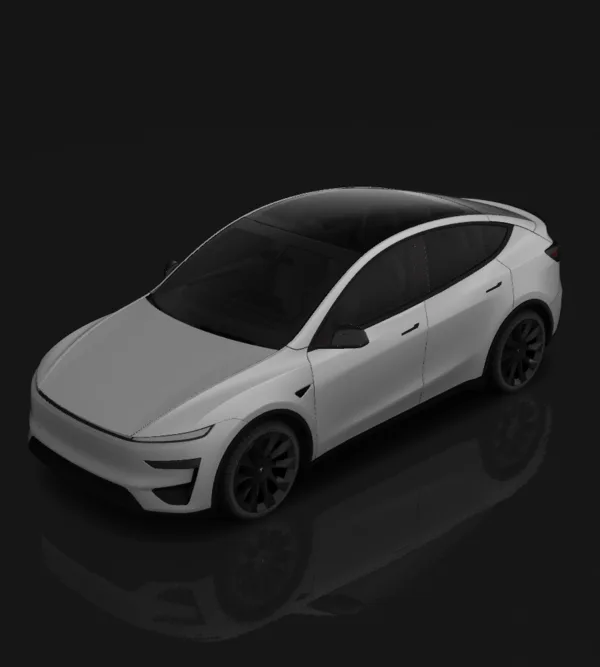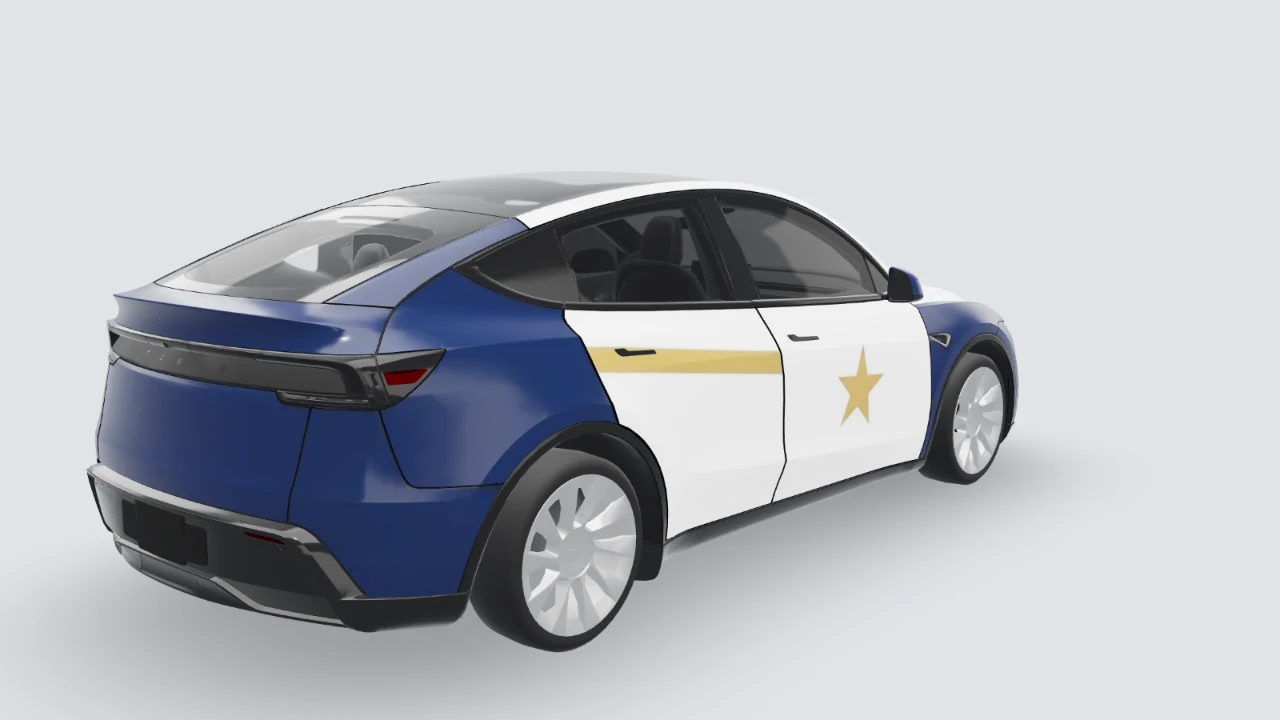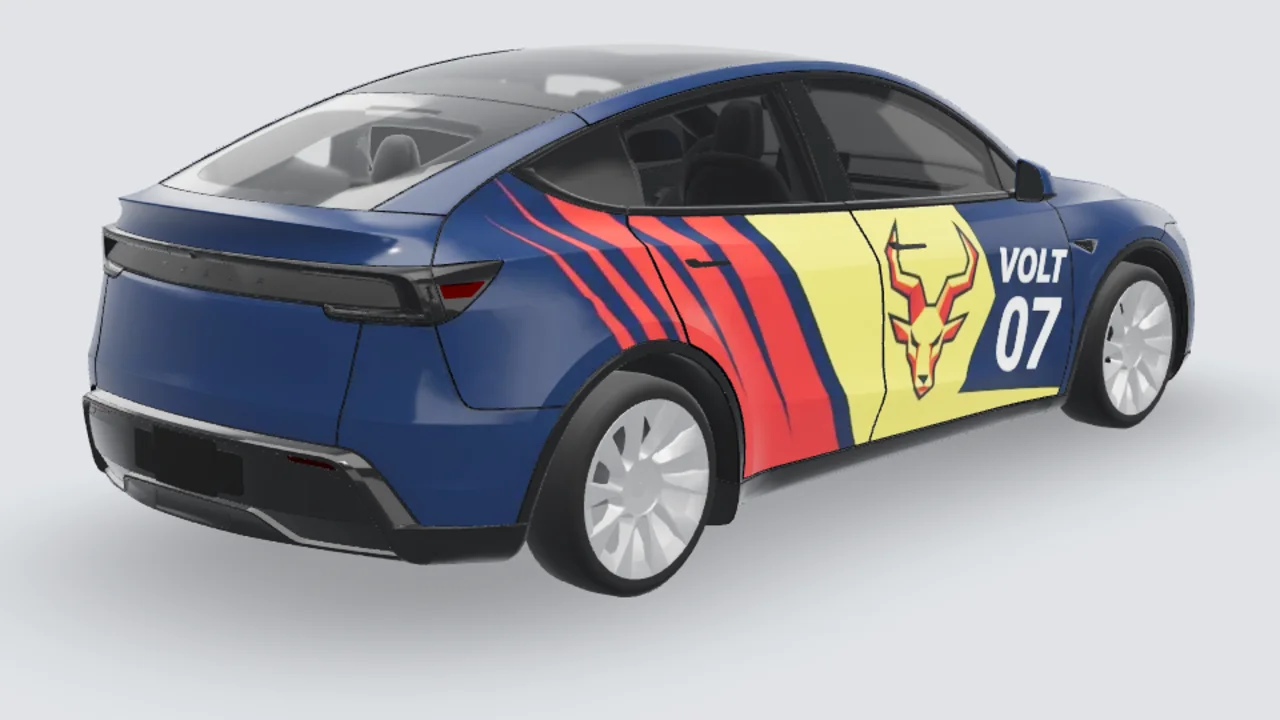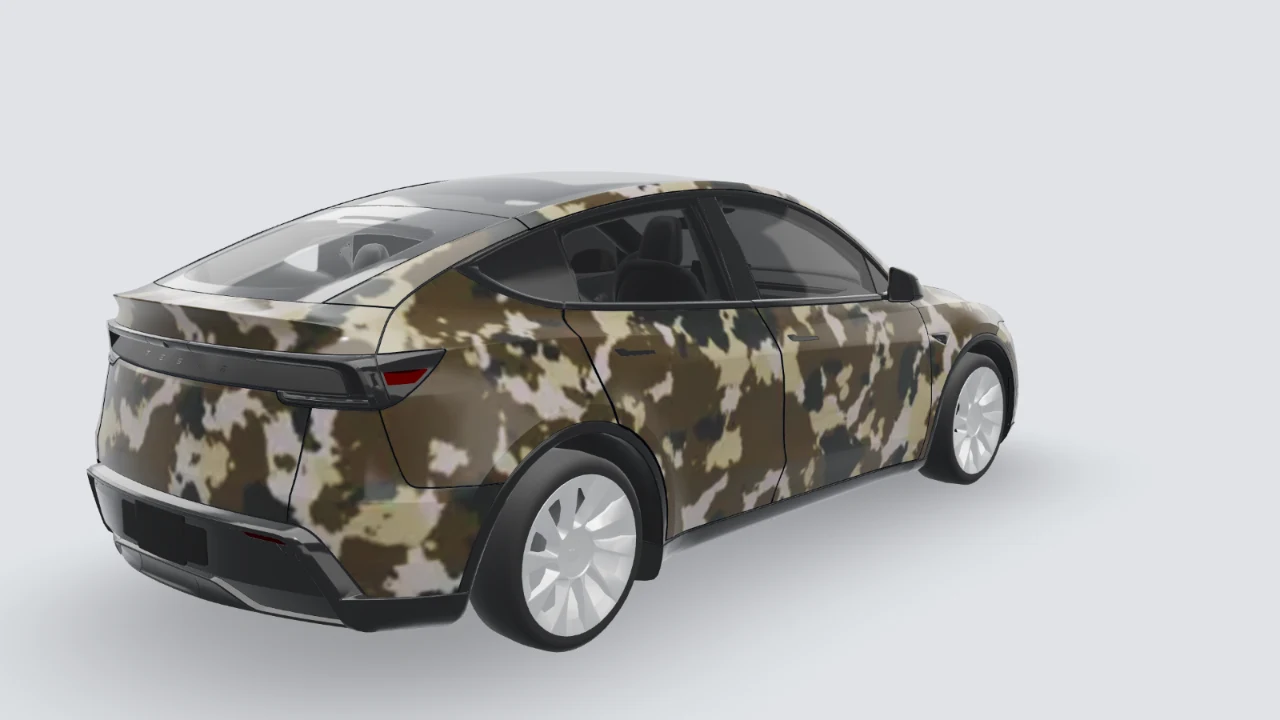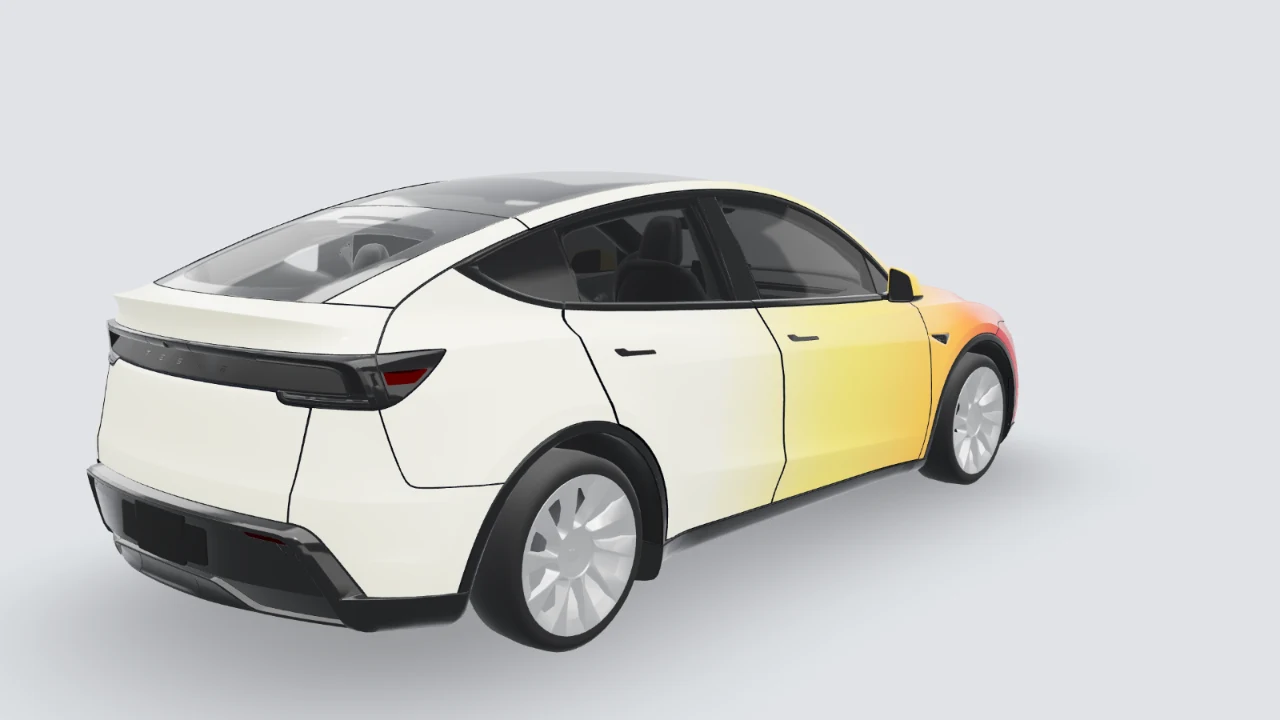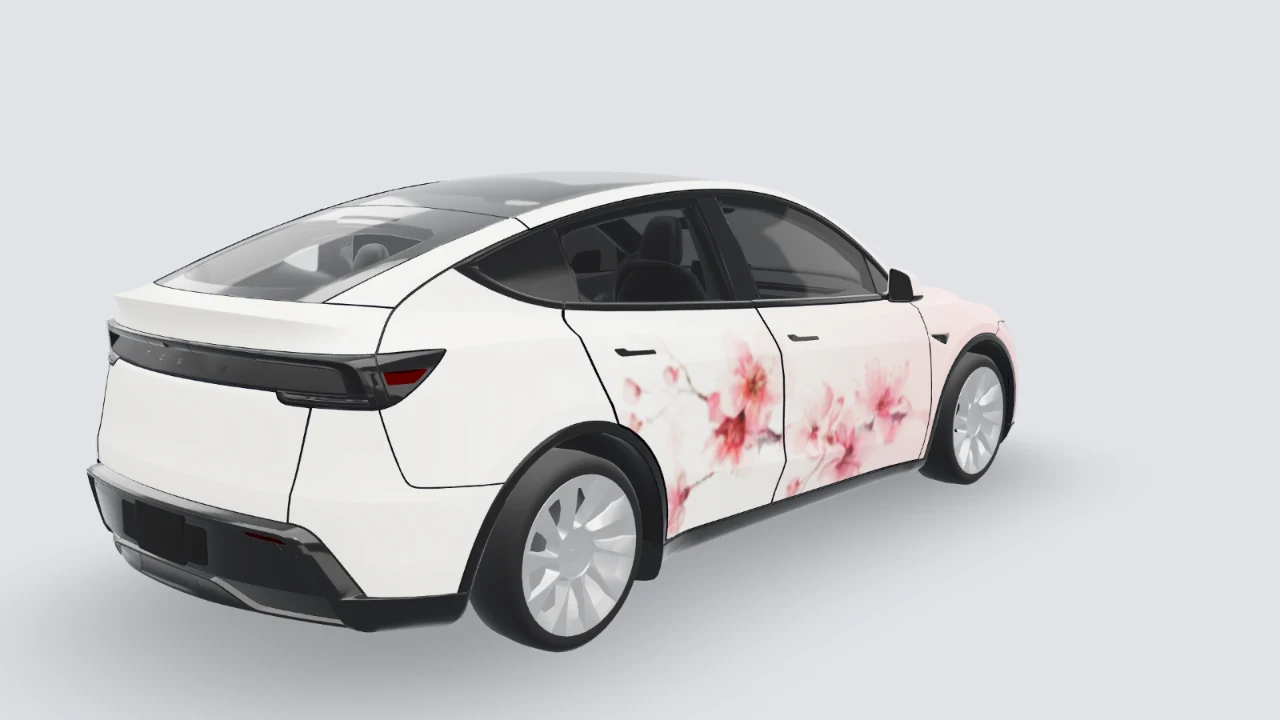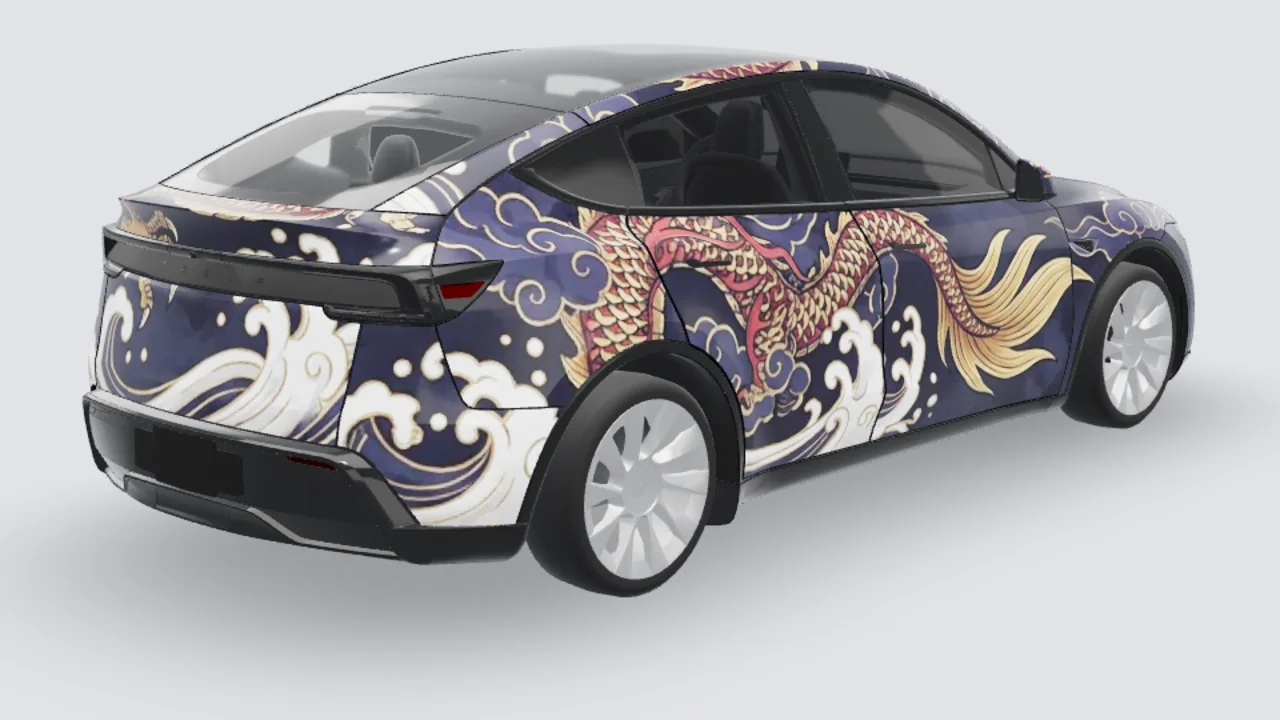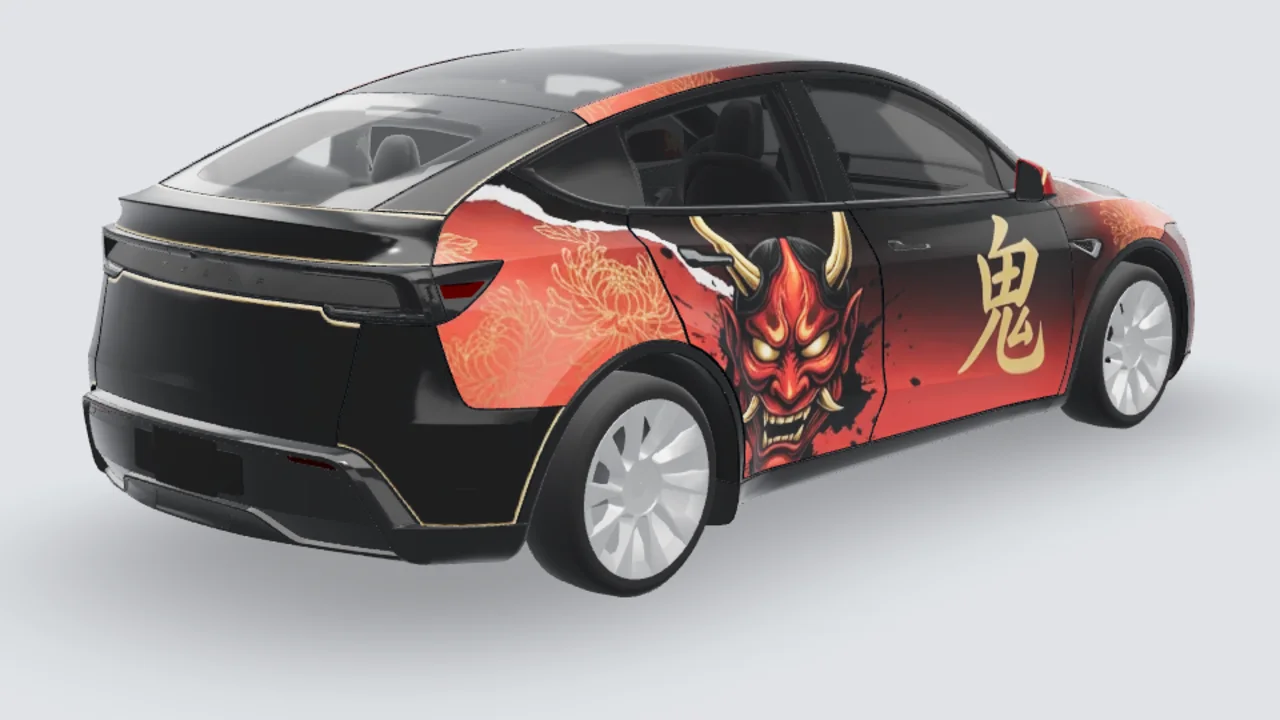
Spray-paint tags & drips

Graffiti car wraps

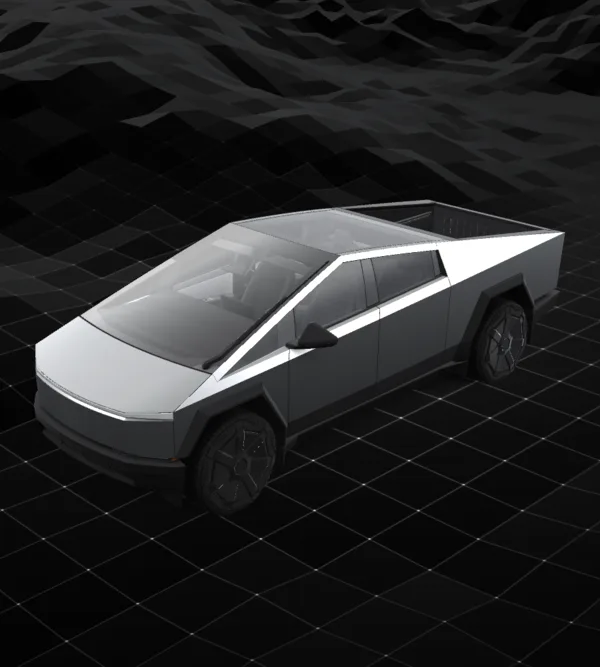
Build a graffiti car wrap around one bold motif, a limited palette and room for panel seams. Compare the Cybertruck 3D previews below, then try an original prompt with abstract tags, spray edges or drips. Use a matching Tesla template for a digital skin, or your own photo for a physical-wrap concept.

Design → edit layers → review in 3D → download template

Example preview · not a generated resultTesla Cybertruck
3D
Open the 3D view and let it finish loading to export the current angle.
PNG · ≤ 1 MB · 1024 × 768 px template; export may be resized to fit.

Before using it: check both sides, panel seams and text in 3D, then inspect the PNG. This changes the car on your Tesla screen; it is not a physical-wrap print file.

Popular wrapsPreview on 3D →
Bring your design to your Tesla

Tesla app 4.59.0 or newer: Creations → Wrap → Upload. Choose the downloaded template PNG, then apply it to your vehicle.

USB alternative: create a Wraps folder at the drive root and place up to 10 PNGs inside. In the car, open Toybox → Paint Shop.

Use the template PNG, not a 3D screenshot. The download keeps a short filename and fits the 1 MB limit. Vehicle software and region availability may differ.

Cybertruck · Tesla Paint Shop

Three graffiti references and original prompts

These are 3D previews of three official graffiti artworks on the matching Cybertruck. Open the matching example to inspect its sides and tailgate. Each original prompt starts a different new design, which still needs a visual check after generation.

View the official Tesla custom-wraps source ↗
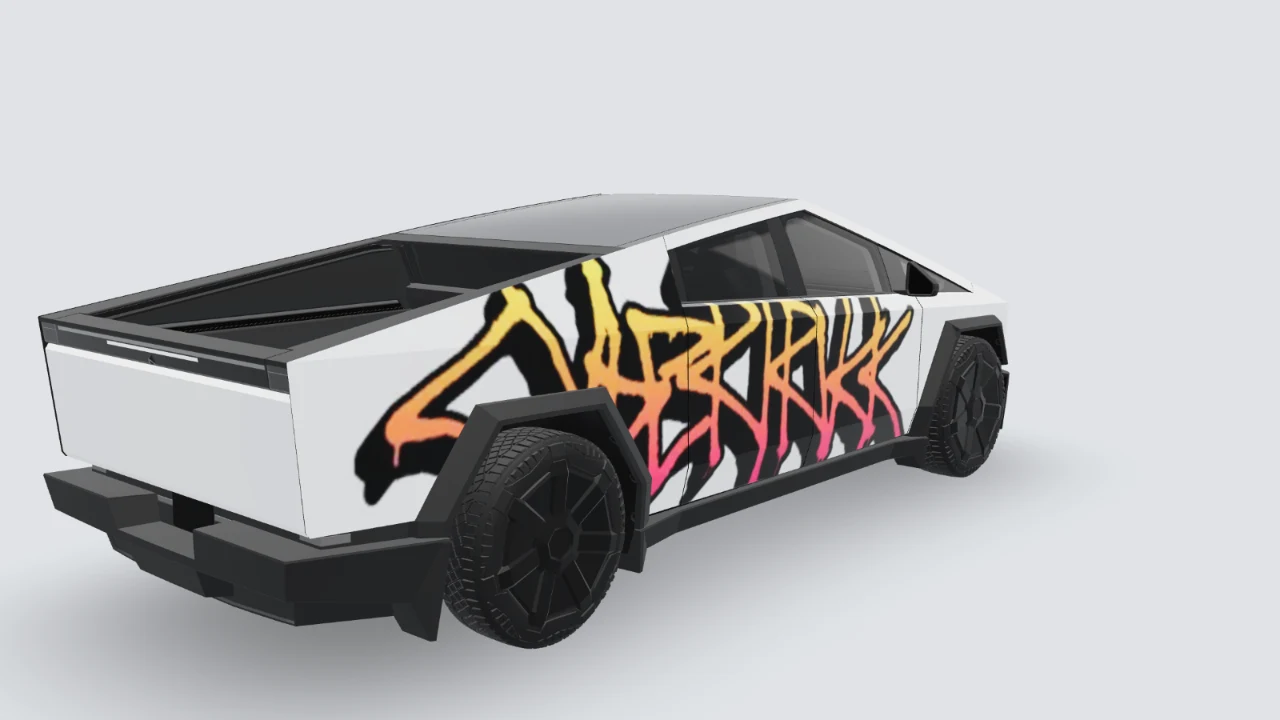
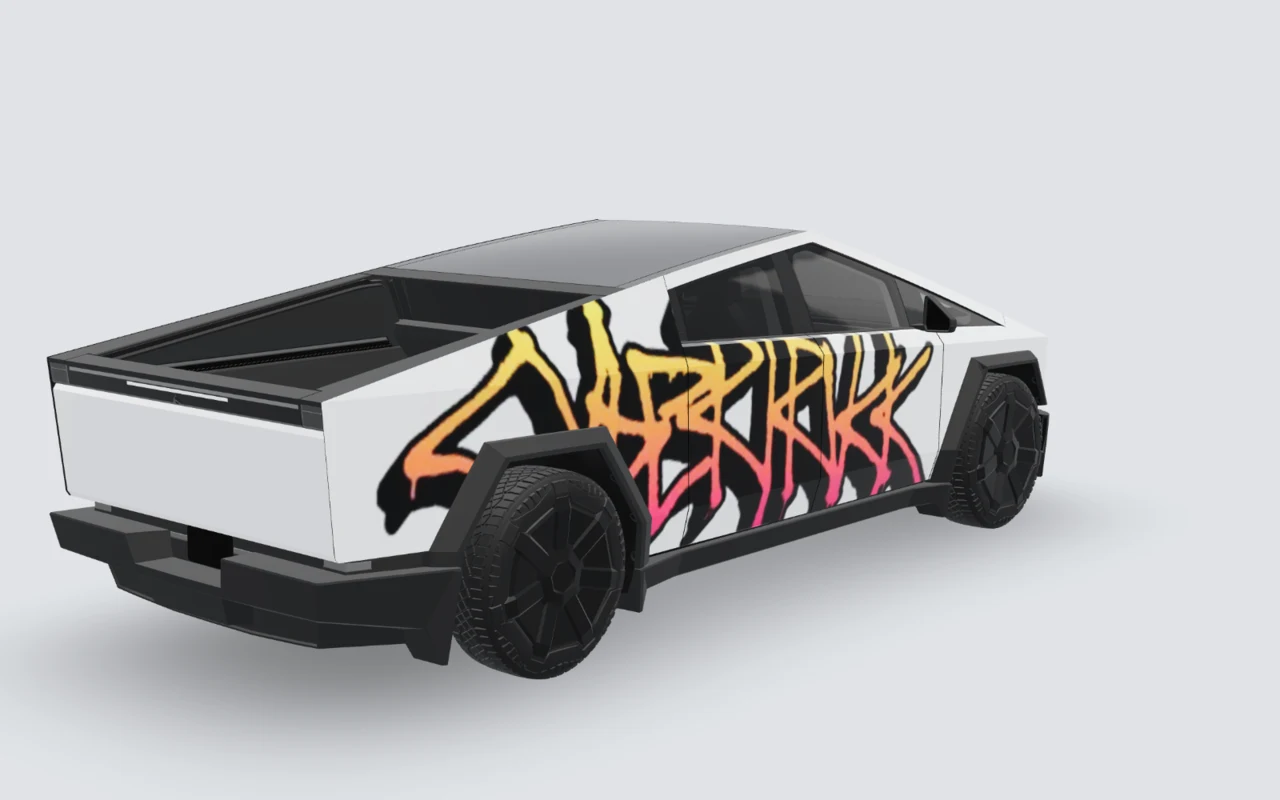
Graffiti 3D preview on Cybertruck: Warm color, bold outline

Cybertruck · Studio 3D preview

Warm color, bold outline

The warm graffiti runs along the side panels while the tailgate stays clean. This matching Cybertruck preview shows the scale of the lettering and where it meets the wheel arches.

Panel check: Keep the most recognizable bend on a large side panel. Let simple color carry across a door gap; avoid putting the only focal point over a handle.

Open this prompt in the studio
Graffiti 3D preview on Cybertruck: Lime strokes with open space

Cybertruck · Studio 3D preview

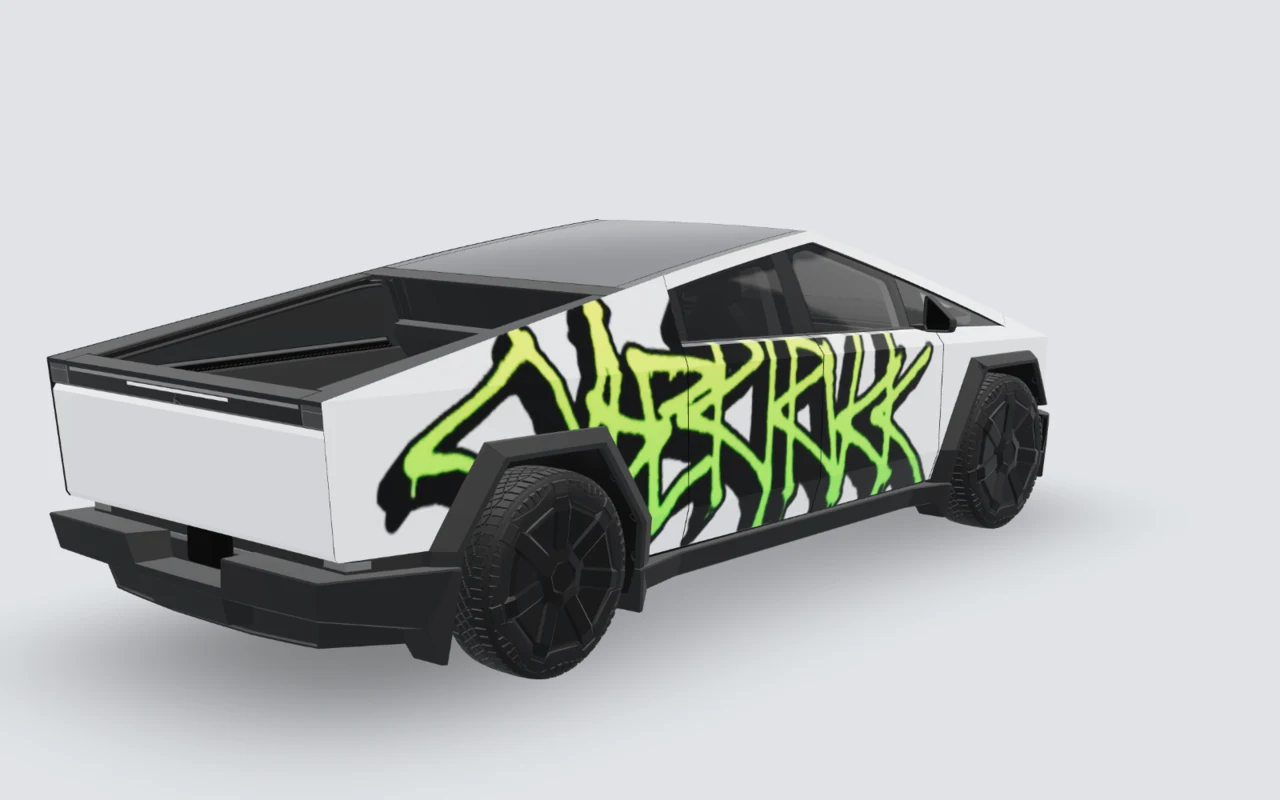
Lime strokes with open space

Lime green makes the angular strokes stand out against black and pale grey. This is a useful reference for contrast without adding many accent colors.

Panel check: Check both sides in the 3D view. A sharp diagonal can look balanced on the flat artwork but disappear at a wheel arch or panel edge.

Open this prompt in the studio
Graffiti 3D preview on Cybertruck: Dark base, small accent

Cybertruck · Studio 3D preview

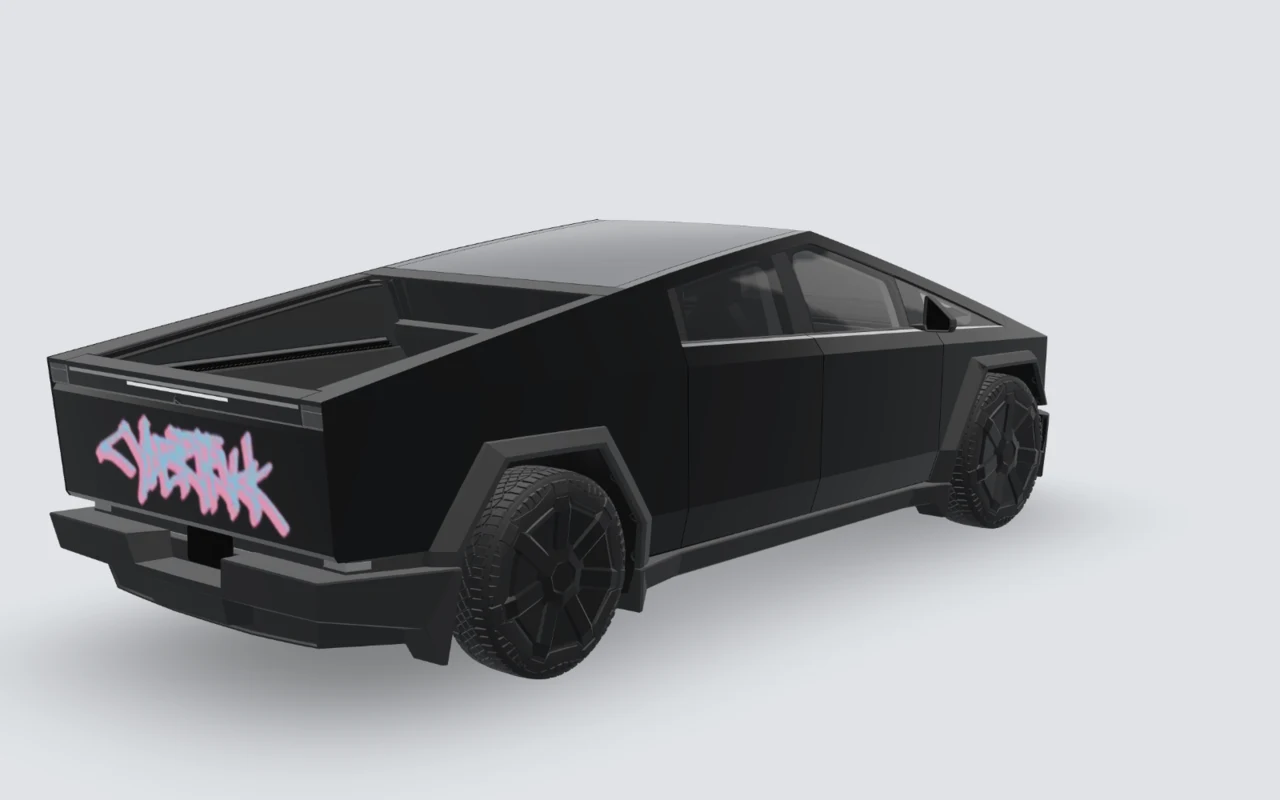
Dark base, small accent

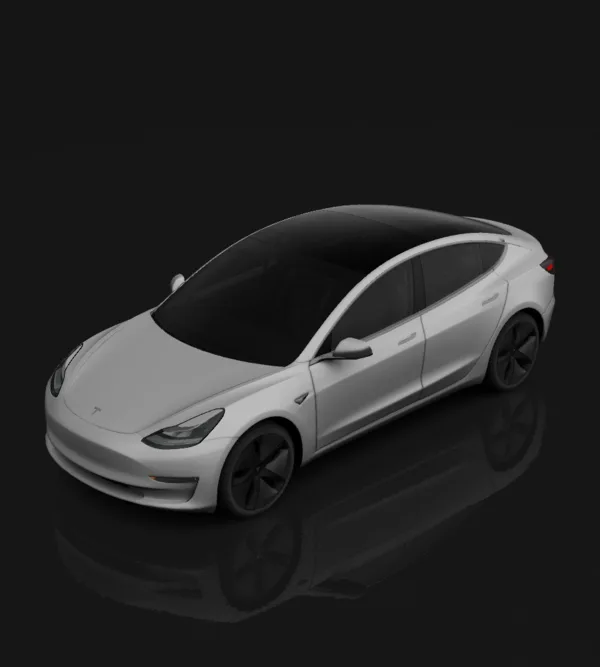
A pink-and-blue motif sits on the tailgate of a black Cybertruck. The rear three-quarter view makes the placement visible while the side panels remain restrained.

Panel check: Keep the small motif within a single panel. Inspect its size at normal viewing distance; a detail that fills the editor can become hard to see on the car.

Open this prompt in the studio
Check three areas before leaving the flat view

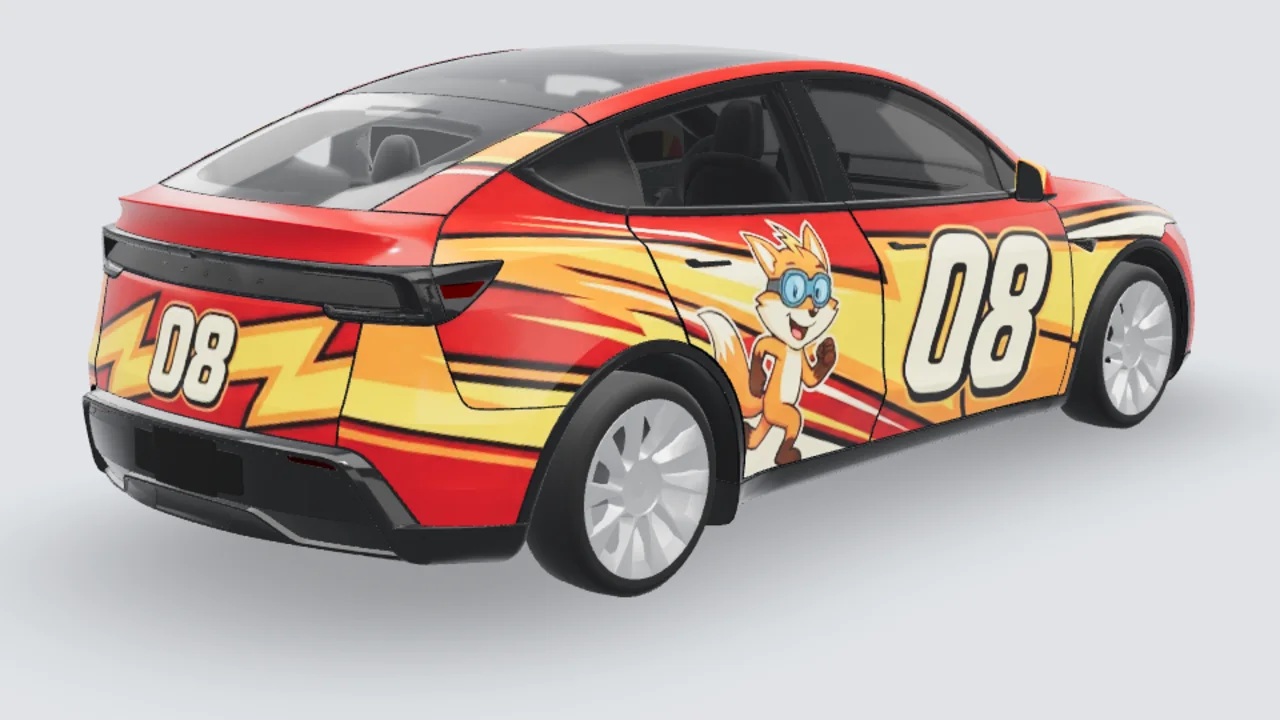
  1. Sides: keep the defining strokes on a complete panel, use broad color across seams, and inspect orientation and wheel-arch cropping on both sides.
  2. Hood and roof: avoid repeating a dense side pattern everywhere. Quiet areas make the main motif easier to read.
  3. Rear and narrow panels: small text and fine lines can get lost. Switch between the flat template and 3D preview, inspect edges closely, then zoom out for the overall balance.
View Cybertruck templates and previews

Choose the mode for the intended result

For a digital skin shown on a Tesla screen, select the exact model and body generation before using its UV template. A finished Cybertruck file is not a Model 3 or Model Y file.

To explore a physical wrap, upload a clear photo of your own car to compare color and large motifs. The render helps communicate a design; a wrap shop prepares the print, cut and installation files separately.

Graffiti car wrap questions

Are these three images generated examples?+

No. They are 3D previews rendered in this site from Tesla’s public Cybertruck custom-wraps artwork. The prompts on this page are original starting points for a different design, not the prompts that created those references. An AI result still needs a visual check.

Can I use a Cybertruck graffiti image on Model 3 or Model Y?+

Do not assume a finished Cybertruck PNG fits another model. Choose the correct Tesla model and body generation, create the design on its own UV template, then inspect the flat and 3D views. Source artwork is a visual reference; it does not establish compatibility with every vehicle.

How do I avoid broken lettering and crowded panels?+

Start with abstract strokes instead of a word that must remain readable. Use one focal motif per side and two accent colors at most as a starting constraint. Keep important detail away from gaps and handles. Prompts guide the result but cannot guarantee exact placement or clean lettering.

Can a graffiti preview be printed as a physical vinyl wrap?+

A photo preview is a design reference, not a print-ready or cut-ready file. A wrap shop needs to prepare artwork for the actual panels and verify dimensions, resolution and usage rights. A Tesla Paint Shop PNG changes the digital vehicle appearance only; it does not change the physical paint or film.

Want to refine color, finish and pattern scale? Read the car wrap prompt guide

Try this style on

Styles